


Running LLMs locally usually feels like a compromise. You either get tiny, fast models that can't think or massive models that crawl at one word per minute. But with the right hardware, you can break that trade-off and replace your cloud billing entirely.
The Setup
The dilemma most developers face is a choice between two bad options. On one side, you have cloud APIs like OpenAI or Anthropic. They are easy to use and incredibly smart, but they come with a heavy "API tax" and privacy concerns. If you're processing proprietary code or sensitive customer data, sending that information to a third-party server is a massive risk.
On the other side, you have traditional local setups. Usually, you're limited by the VRAM on your GPU. If you have a standard consumer card with 12 GB or 24 GB of VRAM, you're stuck with small models. You can't run the heavy-hitters that actually compete with GPT-5. This creates a wall where local AI is only good for "toy" problems, while production workloads stay in the cloud.
The Hardware Math
The real secret to breaking this wall is Apple Silicon's unified memory. On a Mac Studio with an M3 Ultra, the 256 GB of memory is shared between the CPU and the GPU. This eliminates the VRAM bottleneck that kills most local setups. You aren't limited by a tiny slice of video memory; you're limited by the total pool of system memory.
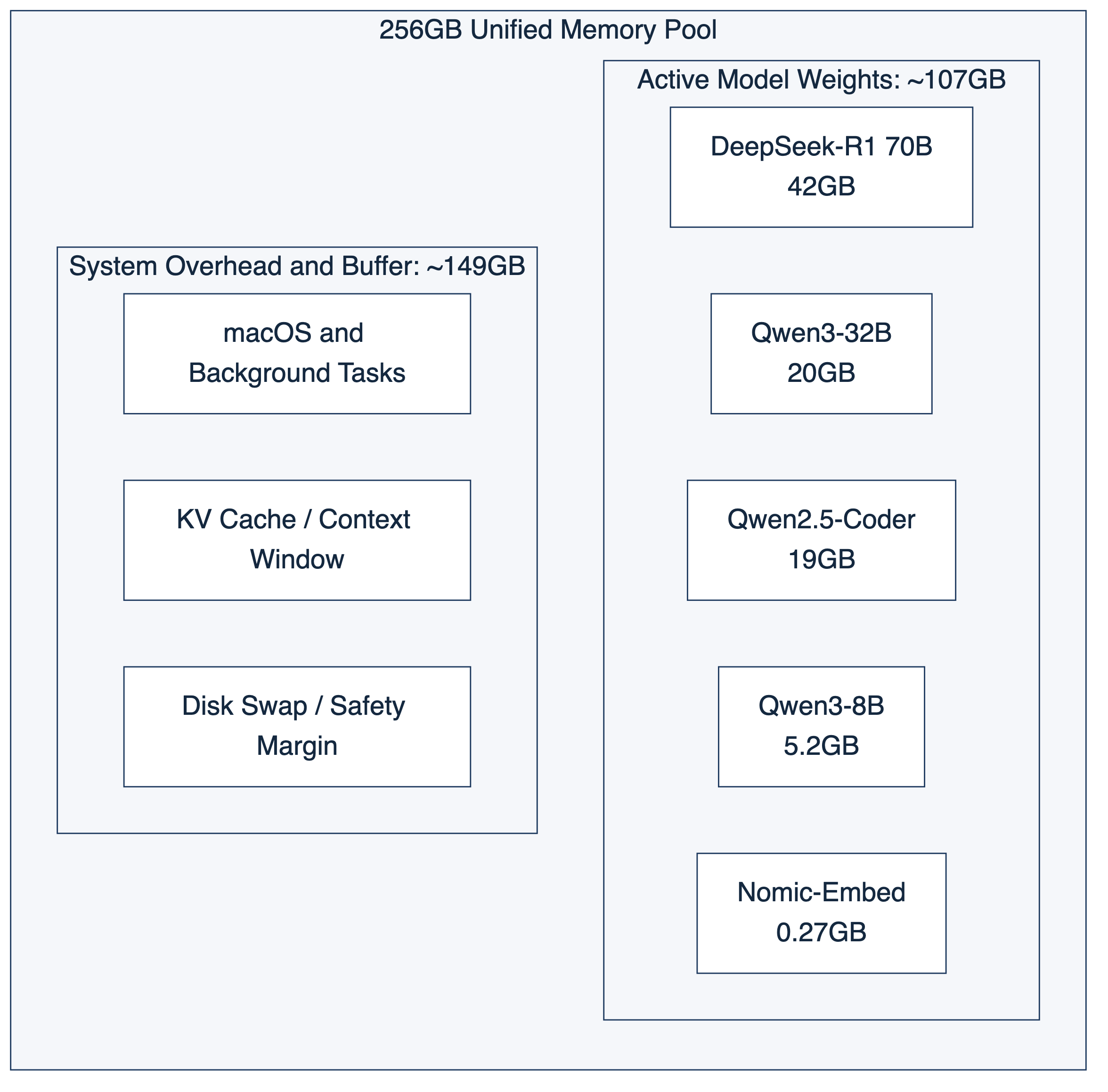
When you look at the actual numbers, the math becomes very clear. Here is how I structure my model loading on this machine:
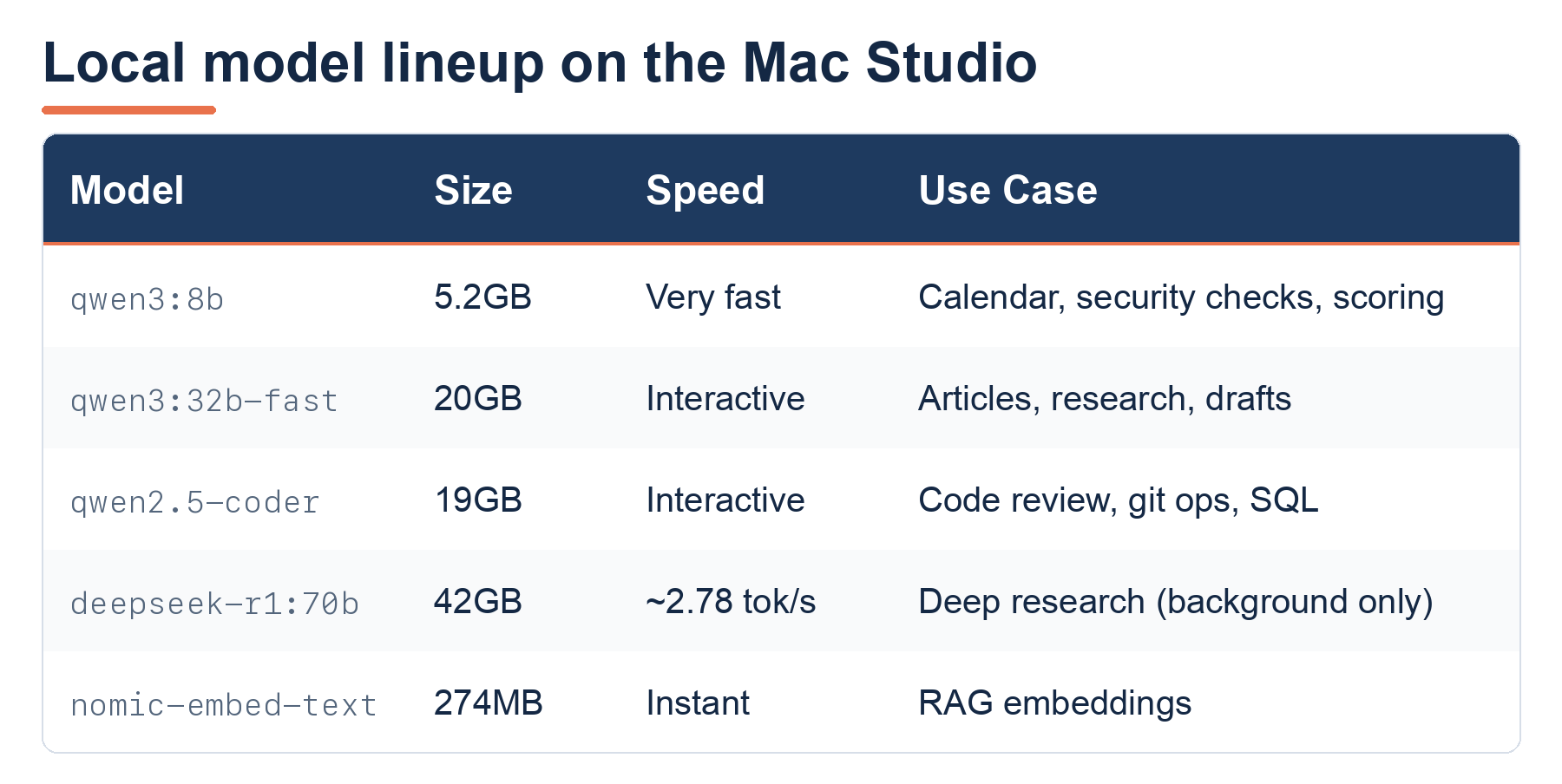
If you load all of these concurrently, you're using roughly 107 GB of memory. That leaves about 149 GB for the macOS, your browser, your IDE, and everything else. This allows you to run a 32B model for writing, a 72B for research, and an 8B for quick checks all at the same time.
The economics are just as compelling. A Mac Studio setup costs anywhere from $4,000 to $7,000 as a one-time purchase. If your production workflows are costing you $200 to $500 per month in cloud tokens, the hardware pays for itself in 12 to 18 months. After that, the "cost" of running a massive model is basically just the electricity it uses. Plus, you finally own your data.
Temperature Is a Randomness Dial, Not a Quality Dial
I see a lot of tutorials that suggest using a temperature of 0.7 for every single prompt. That is a mistake. Temperature doesn't make a model "smarter" or "better." It is simply a randomness dial. It controls how much the model is allowed to deviate from the most likely next word.
If you use the same temperature for everything, your pipeline will fail. For tasks requiring high precision, a high temperature will introduce hallucinations. For creative tasks, a low temperature will make the output feel robotic and repetitive.
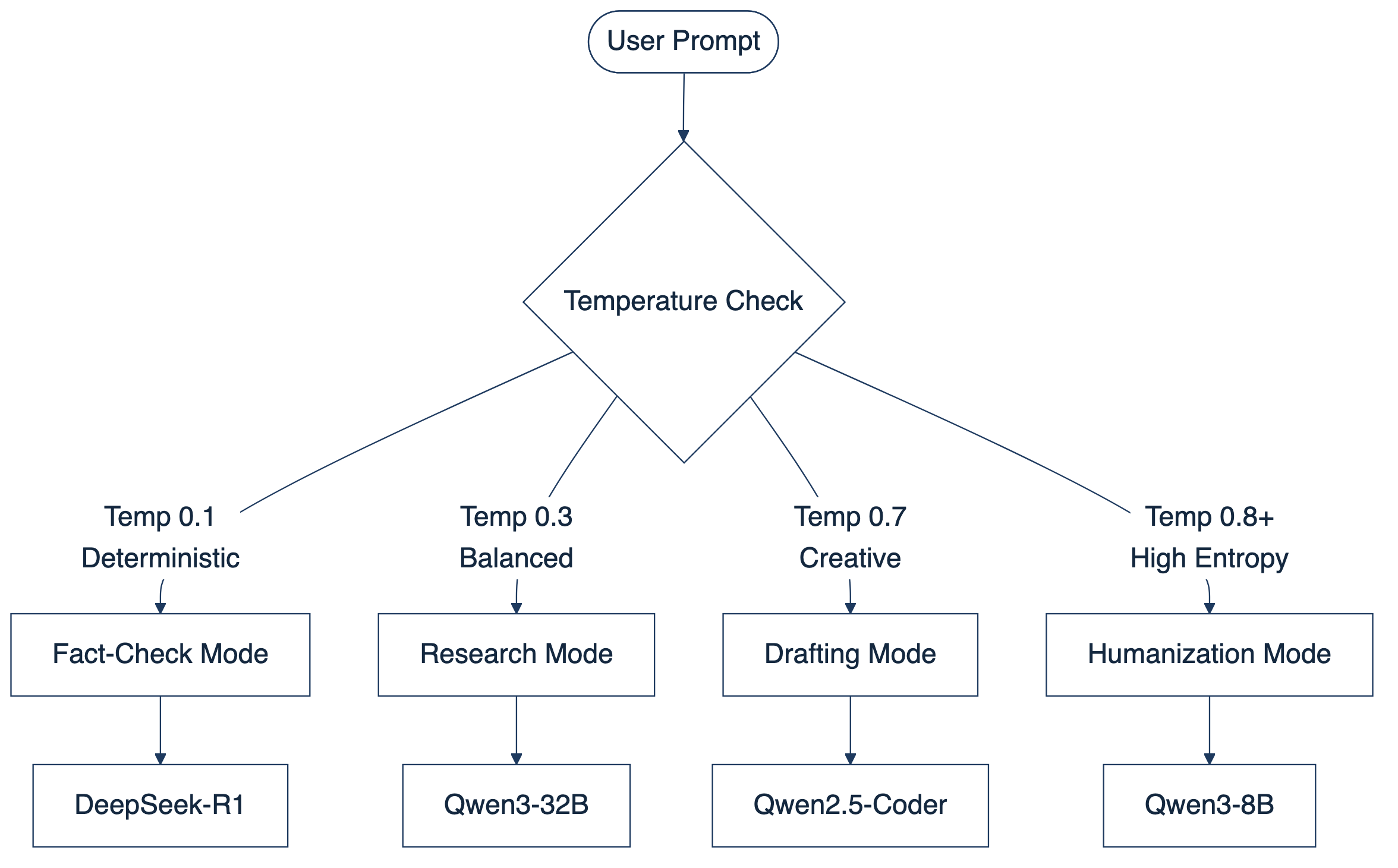
In my production newsletter pipeline, I use a specific routing table to manage this:
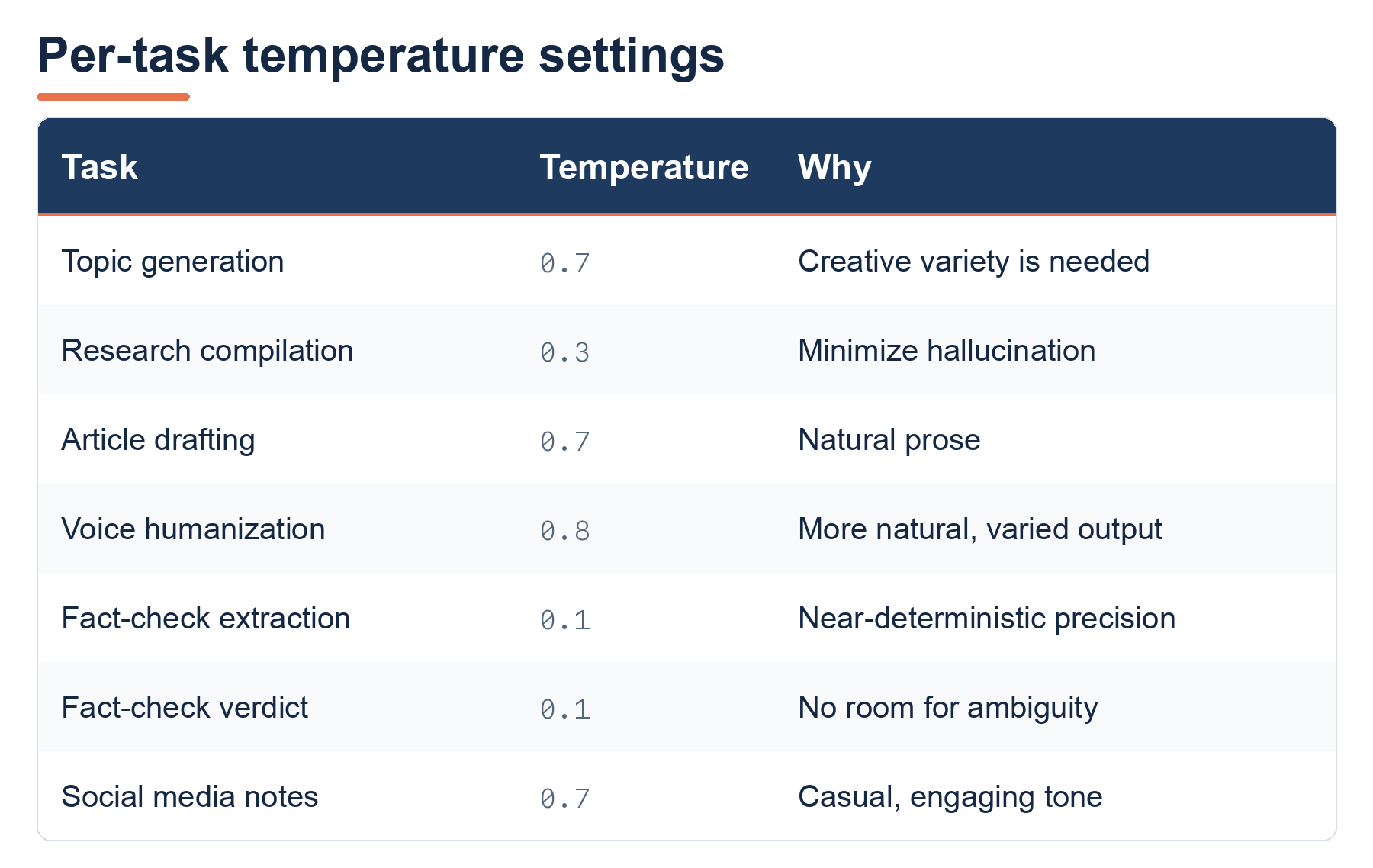
There are two key takeaways here. First, for fact-checking, you want the temperature at 0.1. This makes claim extraction repeatable and ensures your verdicts are consistent every time you run the script. Second, setting the temperature to 0.8 for "humanization" might seem counterintuitive, but it works. A higher temperature allows the model to make less predictable word choices, which actually produces more natural, less "AI-sounding" prose.
The OpenAI Compatibility Trick
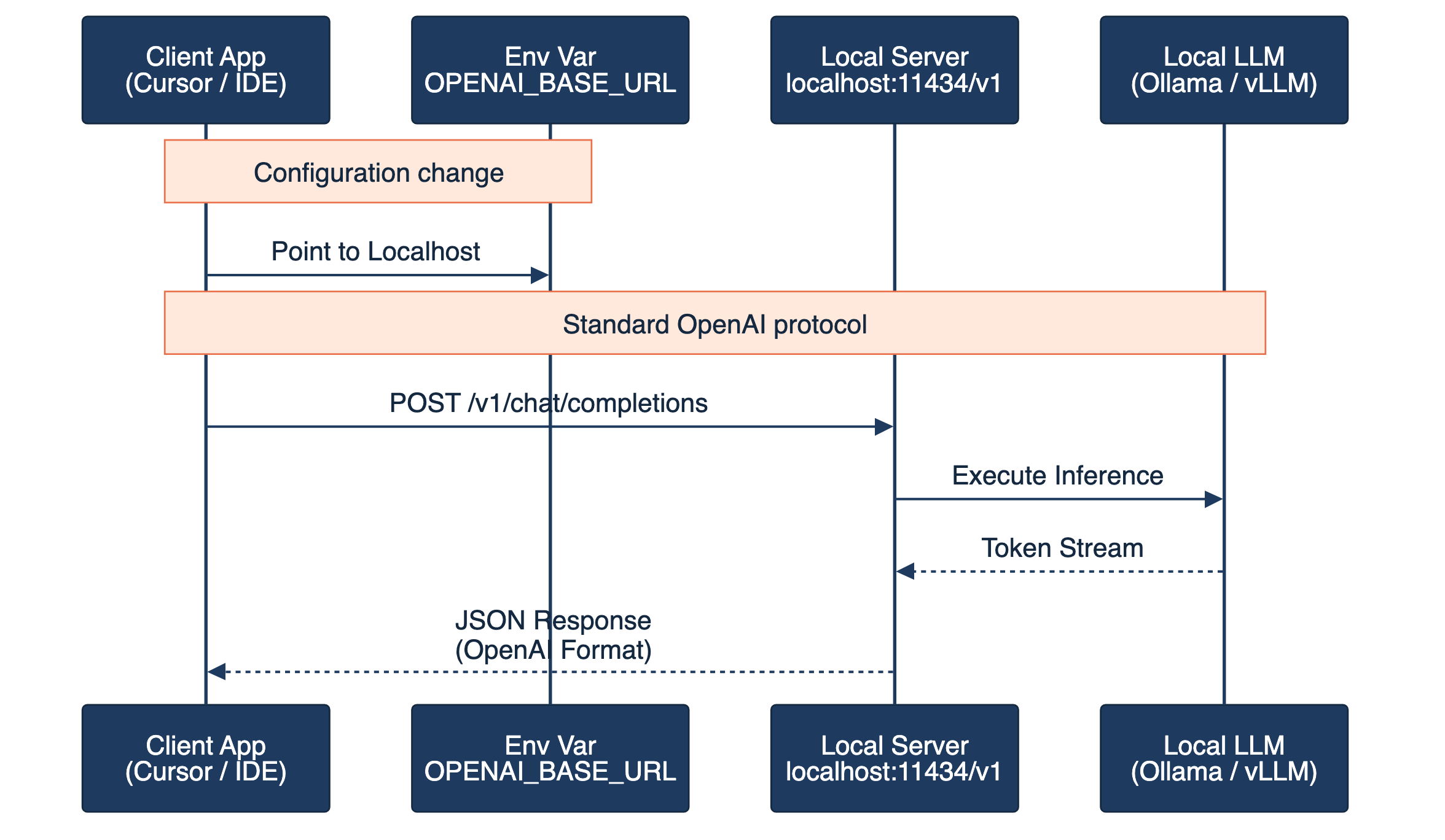
The best part about using Ollama for this setup is that you don't have to rewrite your entire codebase. Ollama exposes an OpenAI-compatible API at `localhost:11434/v1`. This means any tool, library, or SDK that respects the `OPENAI_BASE_URL` environment variable can be redirected to your local machine with almost zero effort.
You can point your existing Python scripts or LangChain agents to your local Mac by simply setting these variables in your terminal:
export OPENAI_BASE_URL=http://localhost:11434/v1
export OPENAI_API_KEY=ollama  # Any value works; Ollama doesn't check this
If you are working within a configuration file, such as a JSON config for a custom agent, it looks like this:
{
  "model": "openai/qwen3:32b-fast",
  "openai_base_url": "http://localhost:11434/v1",
  "openai_api_key": "ollama"
}
Every LangChain chain, every summarization script, and every SDK that follows the OpenAI protocol becomes a free local-model call. You can migrate an entire project from GPT-4 to your local M3 Ultra in about 30 seconds.
Why This Pattern Matters
This isn't just about saving money on API credits. It is about architectural sovereignty. When you move your core intelligence layer to local hardware, you remove the dependency on a single vendor's uptime, pricing changes, and content filtering policies.
The pattern of using unified memory to host multiple specialized models at different temperatures allows you to build a "factory" of intelligence. You have a high-speed 8B model for sorting, a balanced 32B model for drafting, and a heavy 70B model for deep reasoning, all running in the same memory space. This is how you build a production-grade AI stack that is private, permanent, and incredibly cost-effective.
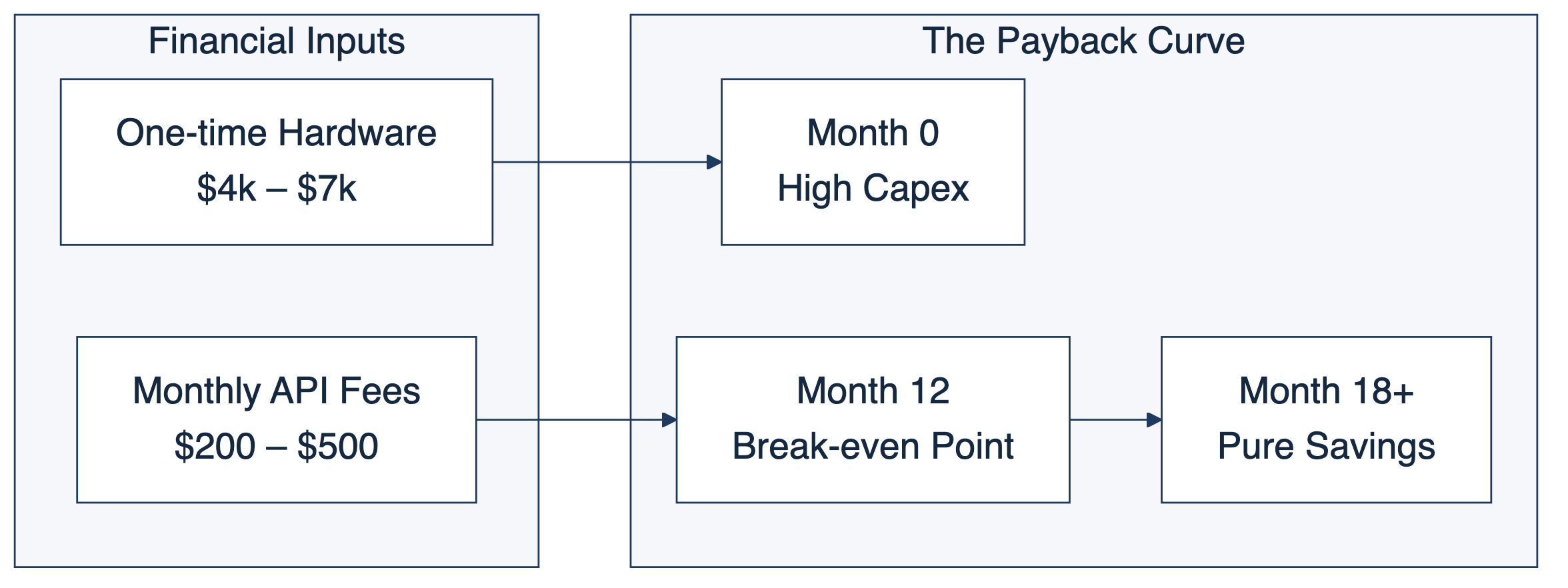
( This cost calculation was based on 6-month-ago pricing when I bought my Mac Studio. Since then the availability of Mac Studios with large amounts of unified memory has evaporated. This has driven up pricing. Hopefully this is temporary. )
Quick Reference
Key Commands
Set local base URL: `export OPENAI_BASE_URL=http://localhost:11434/v1`
Check running models: `ollama ps`
Temperature Cheat Sheet
0.1 to 0.3: Extraction, coding, fact-checking, and structured data (JSON).
0.7: General purpose, drafting, and summarization.
0.8 to 1.0: Creative writing, brainstorming, and persona simulation.
Found this useful? I share practical lessons from my systems engineering and AI journey at As The Geek Learns