


I hit the Export button in Notion and got a zip file. Three megabytes. Years of notes, content calendars, CRM records, meeting summaries, and project tracking—all flattened into Markdown and CSV files with garbled names.
Turning that export into a structured local knowledge base for an AI agent wasn’t hard. But it was full of the kind of small surprises that make you appreciate why Notion charges a subscription.
The Export
Notion’s export is a zip file. Or rather, it’s a zip inside a zip. The outer archive contains an inner archive, and the inner archive contains your data. This is apparently normal. It’s also apparently undocumented.
The files inside follow Notion’s internal naming convention: every file has a 32-character hex ID appended to its name. Content Calendar 1a2b3c4d5e6f.csv instead of just Content Calendar.csv. The directory structure mirrors your Notion workspace, but the folder names have IDs too.
For 47 files, this was manageable. I organized them into a workspace structure that made sense for both me and Tars:
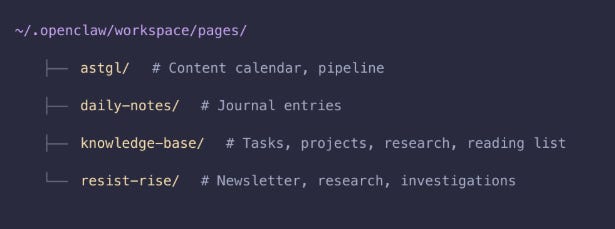
Every file is Markdown or CSV. Every file lives on my SSD. Every file is readable by both ClawPad (the editor) and Tars (the agent). No database. No API. Just files.
The CSV Gotcha
The content calendar was the most important import. Thirty articles in various stages—ideas, drafts, ready to publish. Notion exports these as CSV with all the metadata: title, status, publish date, and tags.
My first attempt to parse it produced rows titled “Untitled” for every entry. The data was there, but the title column wasn’t matching.
The culprit: BOM (Byte Order Mark) characters. Notion’s CSV export prepends \ufeff to the beginning of the file. This invisible character attaches itself to the first column header, so Title becomes \ufeffTitle. Your code reads the header, doesn’t find a match for Title, and returns empty strings.
# Wrong
with open(’calendar.csv’) as f:
 reader = csv.DictReader(f)

# Right
with open(’calendar.csv’, encoding=’utf-8-sig’) as f:
 reader = csv.DictReader(f)
The utf-8-sig encoding strips the BOM automatically. This is a Python-specific fix—other languages have their own BOM handling. But the universal lesson is always inspect the actual bytes of imported data before writing parsing code. A head -c 20 file.csv | xxd would have shown me the BOM in seconds.
Building the Content Pipeline
The raw CSV became pages/astgl/pipeline.md—a living document Tars checks during every heartbeat cycle:
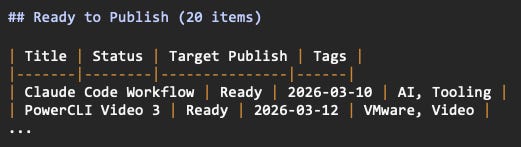
HEARTBEAT.md includes the instruction: “Check pages/astgl/pipeline.md for content with Target Publish dates this week.” Now Tars flags upcoming deadlines in morning briefings without me checking a dashboard.
This is the difference between a document editor and an agent-backed workspace. In Notion, I’d set a reminder on a database entry and get a notification. Here, Tars reads the pipeline, cross-references dates, and proactively tells me what’s due—in the same morning briefing that includes my calendar and reminders.
Structuring a Newsletter Workspace
The import included data for Resist & Rise, a weekly newsletter covering national politics and mutual aid. In Notion, this lived in its own database with its own views. Locally, it became a directory structure that mirrors the actual workflow:
resist-rise/
├── newsletter/
├── drafts/
├── investigations/
├── sources/
└── research/
The research folder gets a source credibility index. When you’re writing about politics and policy, not all sources carry equal weight, and an AI agent needs to understand that.
Each has a research index with source credibility tiers:
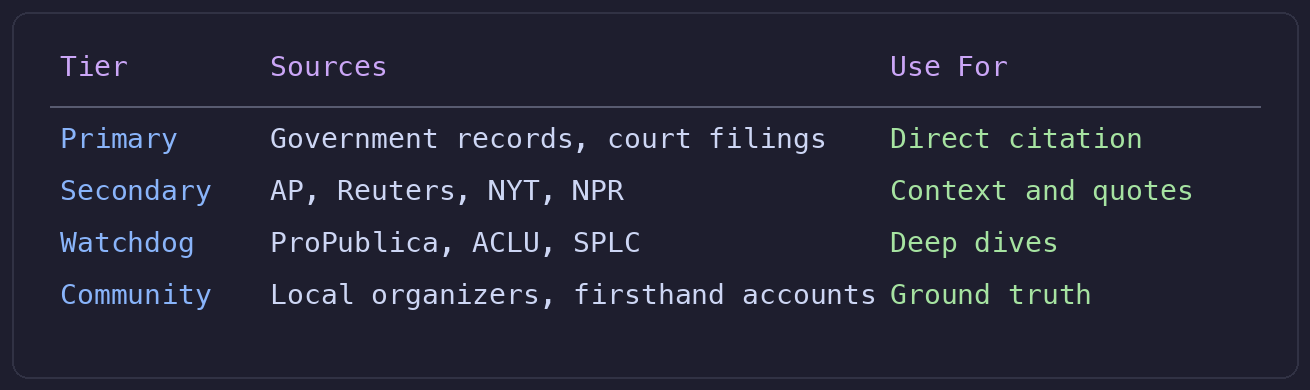
Tars has context about the project in AGENTS.md and IDENTITY.md. It understands the newsletter’s focus and can route research requests appropriately. When I say “What’s the latest on voting rights legislation?” Tars knows to pull from the Resist & Rise research pipeline and prioritize primary and secondary tier sources.
This is where the local-first approach starts paying off. The source tiers aren’t just a reference table for me. They’re instructions Tars follows when gathering material. The agent doesn’t just store your research workflow. It participates in it.
What Didn’t Export
The export was incomplete. Forty-seven files out of what should have been hundreds. My VMware training notes, meeting summaries, and a chunk of project documentation didn’t make it.
Notion’s export is a single monolithic operation. When it fails, it fails silently—you get whatever it managed to grab before it gave up. There’s no error log, no partial manifest, no indication that files are missing unless you know what should be there.
The workaround: smaller, targeted exports. Instead of exporting the entire workspace at once, export individual top-level pages or databases. The success rate is dramatically higher with smaller payloads.
This reinforced something I already knew but needed to feel again: any system that holds your data hostage through export limitations is a system you should leave. Notion isn’t malicious about this—the export just isn’t robust. But the effect is the same. Your data is easy to put in and annoying to get out.
The Missing Piece: RAG
Right now, Tars reads files directly. It can open a Markdown file, parse it, and use the contents. But it can’t search across hundreds of documents semantically. If I ask, “What did we discuss about VMware licensing in January?” Tars would need to open every file and look.
RAG (Retrieval-Augmented Generation) solves this by embedding documents into a vector database and retrieving relevant chunks at query time. The model I pulled—nomic-embed-text at 274 MB—is sitting ready for this. AnythingLLM can provide the RAG layer.
That’s deferred to a future phase. The workspace works without it—Tars knows where files are and can read them on demand. But RAG is the difference between “organized file system” and “searchable knowledge base.” It’s coming.
Quick Reference
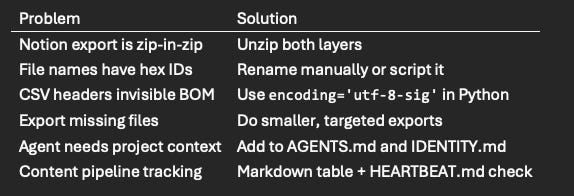
This is Part 4 of the Notion Replacement series. Part 3 covered Channel Communication with and AI Next up: securing the whole thing against a 7-layer threat model. Follow along at As The Geek Learns.